Build a CYGM+
Three steps: buy the parts, print the case, install the free software from this page. About $56 and nothing to solder. It's part of the open-source CYGM project.
Step 1
Buy the parts
One board does the work. The battery and the speaker are optional, but they make it portable and loud enough to wake you.
-
JC3248W535C display board Required
3.5-inch 480×320 capacitive touchscreen on an ESP32-S3, with a battery charger and speaker amplifier built in.
$38 View on Amazon -
3.7 V 3000 mAh battery Optional
The same cell the original CYGM uses, on a 2-pin 1.25 mm JST plug. Charges over USB; a full charge ran the prototype about ten hours at full brightness.
$10 View on Amazon -
3 W speaker, 25×40 mm Optional
4 Ω full-range speaker on a 1.25 mm 2-pin JST lead. Louder alarms, and the spoken weather.
$8 for five View on Amazon - Also: a USB cable that carries data, and a computer with Chrome or Edge.About $56 for everything · prices checked November 2026
Mind the two sockets. The battery and the speaker use the same size of plug. The battery goes only in the socket marked for the battery. A battery on the speaker socket destroys the amplifier.
Step 2
Print the case
This model is the real case file: a desk stand that leans the screen back toward you, with a grille for the speaker. Turn it over, take the screen out to see inside, and print it in any colour you like.
- Size
- 95 × 59 × 40 mm
- Material
- PLA
- Layer height
- 0.16 mm
- Infill
- 10%
- Supports
- On (tree)
- Nozzle
- 0.4 mm
The 3MF is a Bambu Studio project with these settings already in it. The STL works in any slicer. No printer? Libraries, schools and makerspaces often have one.
The step-by-step build guide is coming soon. Buy the parts and print the case now, and you'll be ready to put it together the day it lands.
Step 3
Install CYGM+ from this page
Plug the board into your computer and press Install. It takes a few minutes, and there is nothing to download.
- Chrome or Edge on a computer. Phones, Safari and Firefox can't talk to USB devices yet.
- A USB cable that carries data, not just power. If no port shows up, try another cable.
- Nothing else using the board. Close any serial monitor first.
This browser can't talk to a USB device. Open this page in Chrome or Edge on a computer, or use the manual install further down.
The button unlocks when the box above is ticked.
In the window that opens, pick the board's port, tick Erase device, then Install. The screen goes blank, then the board restarts on its own.
No port in the list? Hold the board's BOOT button, tap RESET, let go of BOOT, and try again.
After it installs
- Follow the screen. It walks you through Wi-Fi, your place, your glucose service (Dexcom, LibreLinkUp or Nightscout), units and alarms.
- Set your alarms. Tap the gear at the top right, then Alarms. Tap a tile, then change the number with − and +, or tap it and type.
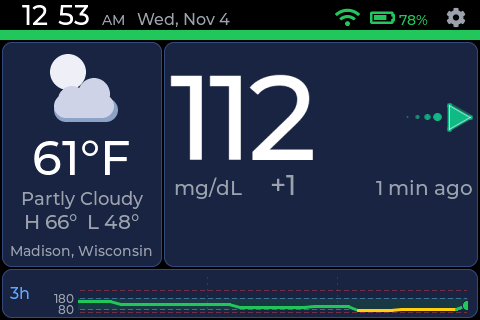
- Pick your home screen. In Settings, then Display, switch the home screen to the weather card.
- Tell Carl what's confusing. Anything that looks wrong or unclear helps. A photo of the screen helps most. Discord or contact.
Updates
After the first install, updates come over Wi-Fi
The board looks for a new version shortly after it starts and then once a day. To look now, open Settings, System, Update and tap Check now. When a version is ready, hold Install and keep the board plugged in. It restarts on its own and keeps your Wi-Fi, glucose sign-in, settings and alarms.
Installing from this page over USB is different: it erases the board. A board on 2.0.15 or older needs one more install from this page before it can update over Wi-Fi. The Beta versions switch on the Update page lets Check now find beta builds as well.
What the board sends
Like the original CYGM, a running board checks in with cygm.me every few minutes so it can appear on the device map. The check-in carries a random device id the board made up for itself, the firmware version and the device model. If you set a weather place, it also carries that city and its coordinates rounded to about a kilometre. Nothing in it names you, and there is no setting to turn it off.
Looking for an update is a plain download of a small file from cygm.me, with no device id in it. Details are on the privacy page.
Rough edges in this beta
- Updates over Wi-Fi are new in 2.0.16. If one fails, the Update page says why and the board carries on with the version it has. Installing from this page always works.
- The alarm sounds work, but the Test buttons in the alarm settings have only been tried in a simulator.
- Joining a saved Wi-Fi network while connected needs its password typed again.
Manual install with esptool
For another browser or a command line. Files for 2.0.25:
- bootloader.bin 0x0 · 22 KB
- partition-table.bin 0x8000 · 3 KB
- ota-data.bin 0x19000 · 8 KB
- cygm-plus-app.bin 0x20000 · 2193 KB
- voice-bank.bin 0x840000 · 613 KB
esptool.py --chip esp32s3 erase_flash
esptool.py --chip esp32s3 write_flash 0x0 bootloader.bin 0x8000 partition-table.bin 0x19000 ota-data.bin 0x20000 cygm-plus-app.bin 0x840000 voice-bank.bin
CYGM+ 2.0.25.2026-11-08.Beta. Files and their SHA-256 are listed in release.json.